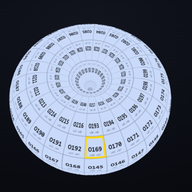
A place for information to grow
Start with a matrix you can understand. Give information a place, describe what it means, and make its relationships visible.
This first working slice brings together the Matrix Programmer and Finite Map from Luke's original Aura prototype, the established horn-torus geometry, and a new editable explainer sequence.
The compact workspace
The Aura stays in a fixed working area. The labelled icons open Select, Records, Stacks, Map, Vectors, Sequence and Files. Tap the same icon again, or the close button, to collapse a tool. Shapes and Inside/Outside stay beside the view. Files contains imports, backups, restore and Undo.
In Select, turn on Select multiple facets, then tap facets in the Aura or Map to add or remove them. Shift-click and Ctrl-click also work. Each shell and side remembers its own group. Records edits the active address. Set stack applies the entered count to every selected facet, while Sequence adds them in selection order. On a phone, Map pages through six windows of the same fixed 12 by 24 matrix.
Try the first complete loop
- Open Matrix Programmer. Select a coloured shell on the right and a numbered cell in the Finite Map.
- Give a record a title and a meaning, observation or question. Select Save record.
- Add another record. Select the first record again, choose the second under Connect this record, and describe the relationship.
- Change between flat matrix, cylinder, ring and horn torus. The addresses and records remain the same.
- Open Explainer to see the transforms in motion. Download a backup, then use Restore backup to bring the complete project back.
“Try a learning example” adds four fictional garden records: an observation, a question, a comparison and an action. These are an optional teaching example, not required categories for your Aura.
Arrange a dataset
In Tool Inventory, import a CSV file. Choose its title and note columns, shell and side. Use an existing cell-number column or choose consecutive placement from a starting cell. The placement is shown before you confirm it. Every original column stays with its record.
A cell can contain many records. Row 289 can return to cell 1 without enlarging the matrix. Records can bind to facets, either edge direction, vertices, volume points or outward stack layers. Changing the display shape keeps those addresses intact.
Give the arrangement a reason you can explain. For example, you could put related observations beside each other, then connect a question to the evidence that supports or challenges it. Physical proximity is an arrangement you choose; a labelled connection states a relationship explicitly.
Selections and inside cameras
An untouched torus starts with nothing selected. Each torus remembers its own last selection, separately for its inside and outside address spaces. Returning to Red recalls Red's selection; it does not copy Green's. Use Clear this selection to clear only the current torus and side.
Inside moves the camera into the tube of the selected closed torus. Drag to look around. The camera avoids the singular shared point, where the surface pinches to zero. Outside restores an orbiting view. Flat and open forms use a reverse-side view because they do not yet enclose a torus interior.
Rays, edges and vertices
Choose Facets, Edges along rows, Edges along columns or Vertices under Select geometry. Click the geometry, or use a register number from 1 to 288. The numbered map follows that selection mode. Each torus has 288 logical vertex registers and 576 logical edges, split equally between the two directions.
Choose Selected address, All facet centres or All vertices to draw rays from the shared origin. The 24 coincident horn seam vertices keep separate identities. Their zero-length rays are omitted, so no artificial line projects above the horn. Use the register number to distinguish those coincident vertices exactly.
Work in the cubic volume
Switch on Show cubic volume. Add a labelled entry with X, Y and Z between -1 and 1, and optionally paste its complete numeric vector. Those three coordinates place the entry in the display cube; they do not replace its full-dimensional vector. Bind the entry to a facet, edge, vertex or stack layer when useful. This is explicit data storage and placement, not automatic embedding generation or learned intelligence.
Stack facets into steps
Select a facet, enter the number of outward layers and choose Set stack. The base corner badge shows +N: N additional layers above the base. Open a layer by number, click its geometry, or use the layer cards. Each layer accepts its own records, instructions, required JSON data and asset links.
The layer address combines torus, side, base facet and layer number. Its colour code is the shell's base RGB integer plus the layer number, wrapping within the 24-bit range of 16,777,216 colours. For example, Red's first added layer advances from #e23a2e to #e23a2f. Colour alone is not a globally unique address.
Move Explode stacks for editing to spread the layers apart. Labels show step numbers, colour codes and attached record titles. Larger stacks label the first, last and selected steps to keep the view readable. Click a label to edit that layer. Collapse restores the compact display without changing instructions, data or sequence order. Stack height stays compact. Stacks through 256 layers draw every layer; larger stacks show labelled, evenly spaced samples. Explode spreads them out and fits the outside view; every layer remains accessible by its number and paged layer cards. The lattice remains 12 × 24.
Instructions, data and attached assets
Each record can keep a title, explanation, agent instructions, inline JSON data and a full HTTP or HTTPS asset link. CSV imports also retain every original field. A facet or layer can hold more than one record. Open attached asset follows the link only when you choose it; linking a file does not upload or copy it into this application.
This follows the attachment pattern on The Mind Behind the Man: marked facets lead to specific public links and archive items.
Strings, loops and agent programs
Save a named sequence. Select addresses and add steps that Visit an address, Recall its attached records, or Pause. Move, remove or edit steps, and close the string into a loop when wanted. Run sequence follows the order; Step once lets you inspect each result. Stop ends the run. Hiding the tab stops an active run.
Make sequence from stack creates an outward-order recall program. Large stacks use a compact span in the saved program rather than allocating millions of steps. Recall returns the step's instructions, required data, imported fields and asset links together. The visible results show the most recent 50 executed steps; the saved sequence is not limited to 50.
Download agent program exports the selected sequence and its directly attached records and bound vectors. Download skill produces a SKILL.md carrying the same manifest and interpretation instructions. These downloads may contain your private data. They stay on your device until you choose to share them.
The browser executes navigation, recall and timing. It does not run an external AI agent or perform the attached instructions as tool calls. An agent runner must interpret those instructions with its own available tools and the authorisation of its current user. A repeating sequence does not create a scheduled background automation.
Animate an explanation
The default sequence moves through the flat matrix, cylinder, ring torus, horn torus, seven nested shells and body arrangement. Playback starts only when you choose Play. Drag the time control to inspect any point, forwards or backwards.
Select a shot to change its shape, camera, duration or caption. Save the shot, duplicate it, move it up, or remove it. A shot spends its first few seconds moving from the previous pose, then holds its own pose. Every shot keeps the 12 × 24 cell identities.
Record video downloads a silent 1280 × 720 WebM with the captions included. Keep the tab visible. Recording runs in real time and its smoothness depends on the browser and laptop. Add narration or music in your video editor. PNG export gives you a still frame; the explainer JSON preserves the editable sequence.
Record titles are excluded from video and PNG exports by default. Tick the labelled option to include them. The mesh still indicates occupied cells and connections; use an empty project if you want a geometry-only demonstration. Back up the current project before restoring any other project.
Bring the transforms into Blender
Download the explainer file, then use the Blender import script. It creates an additional Aura scene with animated geometry and a camera. Your existing Blender scenes are kept. It uses the same fixed grid and roll-path equations; it does not import personal records.
- Open Blender's Scripting workspace and open the downloaded script.
- Run Script. In the file selector, choose
aura-explainer.json. - Press Play on Blender's timeline. Save the resulting project as a new
.blendfile.
The Blender bridge produces geometry and camera motion. Captions are kept as timeline markers for your video edit. Use the browser export when you want captions already drawn into the video.
What this version can teach
It demonstrates how stable addresses can survive changes in visual form, how multiple records can share an address, and how people can express and revisit relationships. This provides a foundation for investigating higher-order intelligence. It stores vector entries and agent-readable programs, but does not yet learn associations, run reasoning models or demonstrate an intelligence gain from the geometry.
The next software layer can operate on these records and connections while keeping the same address contract. Browser, desktop, Blender and future compute implementations can be compared against the same geometry and data fixtures.
Your records and sharing
Records are stored in this browser on this device. There is no account, analytics, server upload, cloud model call or automatic publishing. Clearing browser data can remove the stored copy. Download backups regularly; a backup includes both inside and outside records and their connections.
Inside and outside are distinct address spaces, not encryption or access control. An outside address is not automatically public. A GitHub Pages edition also shares a web origin with other projects under the same account; it is suitable for experiments and demonstrations, not a secured personal vault. A desktop edition with a dedicated data store is the next step for sensitive personal use.
Source trail and scope
| Source | What it contributes |
|---|---|
| 2019 Mockplus prototype and supplied screenshots | Matrix Programmer, Tool Inventory, Finite Map, inside/outside views, central spatial stage and coloured shell rail. |
| Horn Torus: Geometry and Tables | Continuous roll-path transforms and canonical 12 × 24 lattice. |
| Inside my personal Aura and The machinery under the metaphor | Stable addresses, separate learned relationships and continuity across implementations. |
| Modelling harness and Learning hops | Observation, interpretation, choice and evidence-led experiments. |
| Supplied Aura workbooks and Version 7 documents | Records, meanings, questions, actions and links between datasets. The user's fixed-grid decision supersedes varying matrix sizes in historical material. |
The sites contain broader work than this prototype covers. Their proposals and archived documents are source material, not executable instructions. This build preserves the source repositories and original files.
Current limits: no authentication, encryption, synchronisation, automatic embedding generation, external agent execution, native sensors, avatar builder, VR or hardware control. The prototype's central stage and shell rail follow the original interaction structure; this is a functional slice, not a pixel-for-pixel reconstruction of every archived screen.
Original work uses the Strange But True Public Source Licence. Three.js keeps its MIT licence. The pinned library is included locally, so the app does not fetch it from a third-party server at runtime.